How to Make a Menu with Calories, Allergens and a QR Code
Turn your recipes into a printed menu with calories and allergens, a QR menu your guests open on their phone, and an allergen chart for your team — step by step.

Guests ask what is in a dish, and more and more of them want to see the calories too. Writing that by hand for every dish takes hours, and it goes out of date the day a recipe changes.
Menus & Allergens builds it from the recipes you already have in AKROUN FOOD AI: a printed menu with calories and allergens, a QR menu your guests open on their phone, and an allergen chart for your team.
Menus & Allergens is part of the Chef Pro plan. You find it in the menu under Track → Menus & Allergens.
What you get
| Output | Who it is for | What it shows |
|---|---|---|
| Printed menu | Guests at the table | Your dishes by section, the price, calories per portion and numbered allergens, with a key at the bottom — in one language or two. |
| QR menu | Guests on their phone | The same menu, always up to date. A guest taps the allergens they avoid and the dishes that contain them are marked. |
| Allergen chart | Your kitchen and floor team | Every dish against the 14 major allergens, where each one comes from, and lines to sign and date. |
Step by step
1. Create a menu
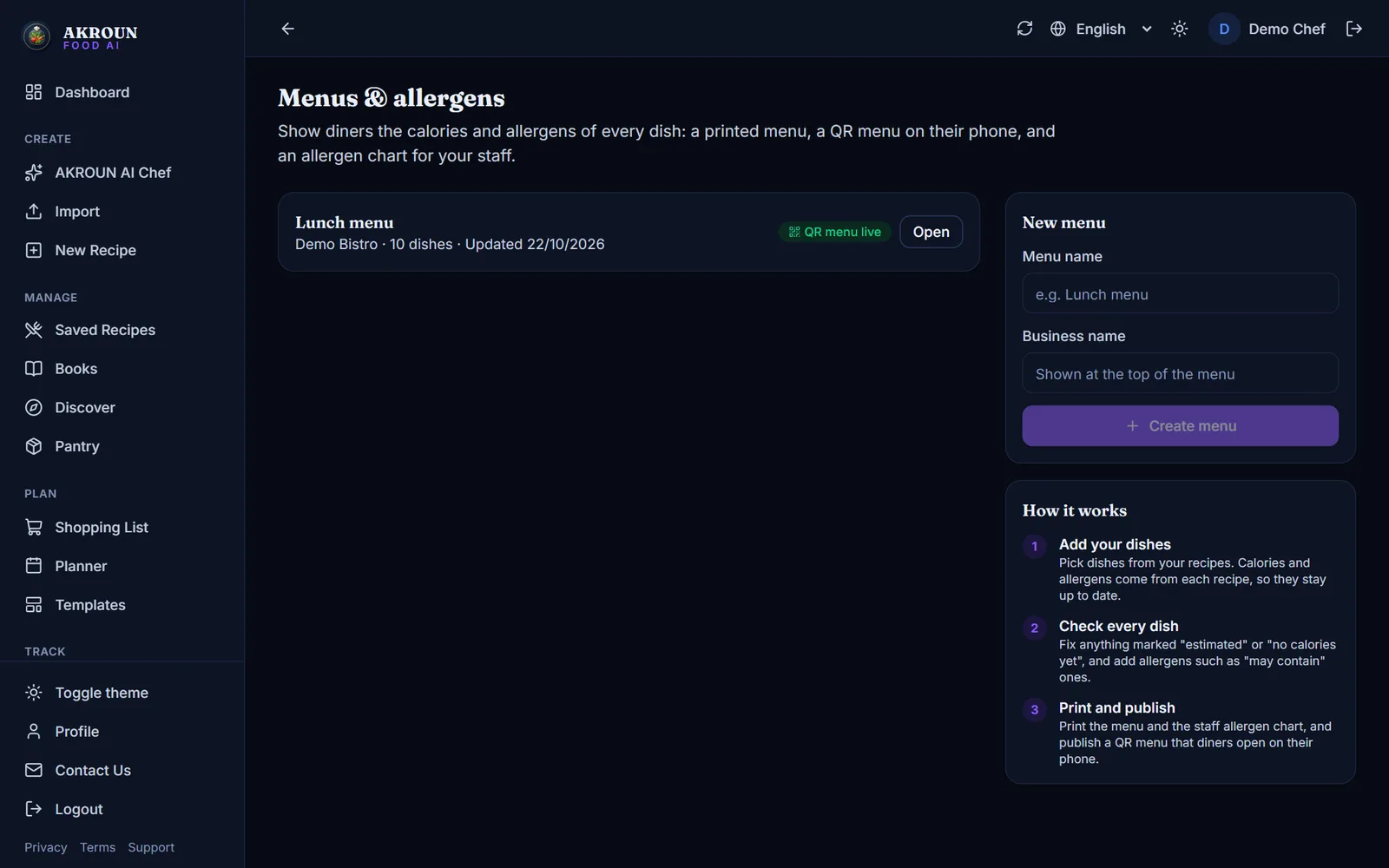
Open Menus & Allergens and fill in New menu on the right: a menu name (for example "Lunch menu") and the business name shown at the top. Press Create menu. You can keep a separate menu for lunch, dinner, a set menu or an event.
2. Add your dishes
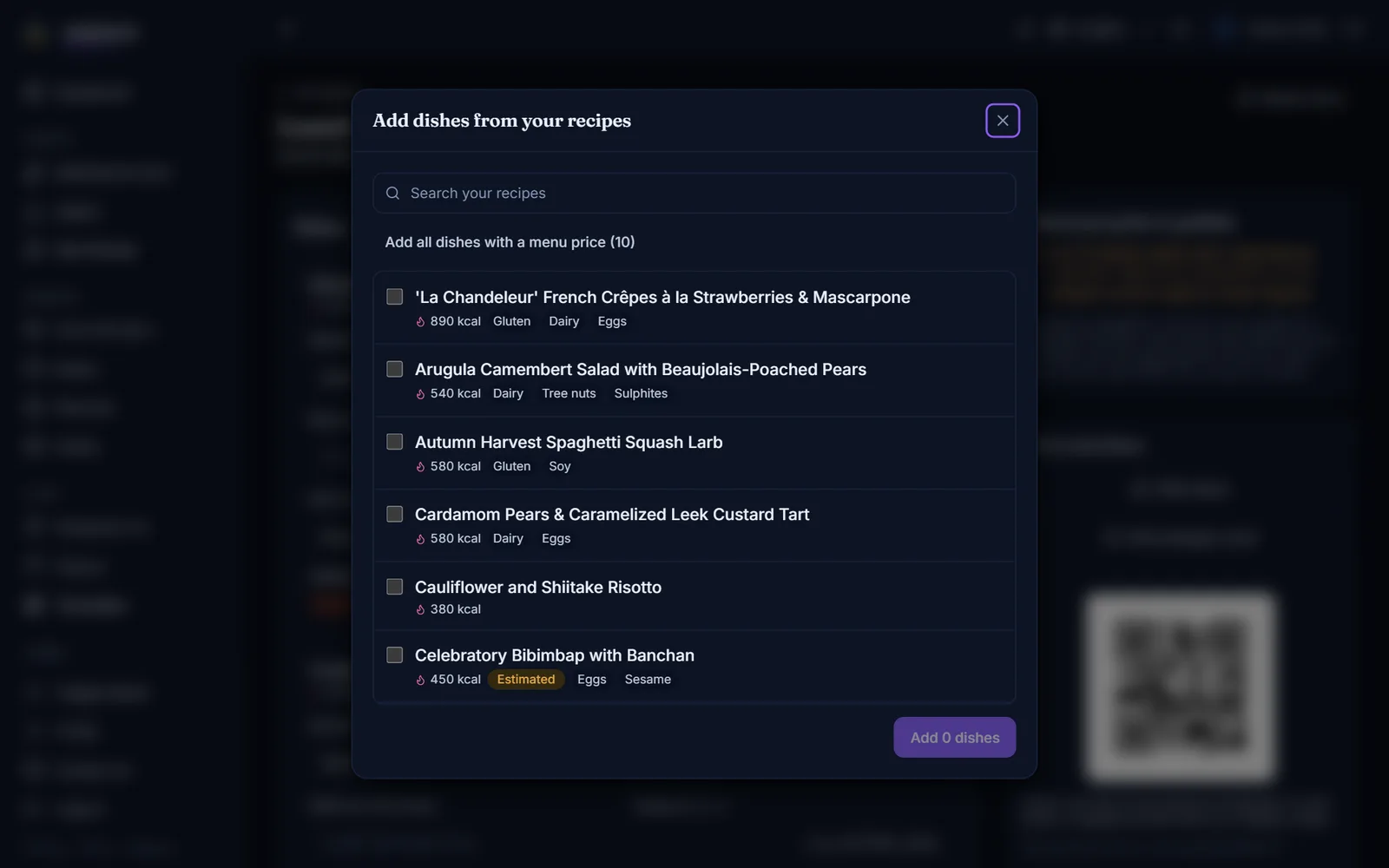
Press Add dishes, search your recipes and tick the ones you serve. If you already set a menu price on your recipes (in the plate cost card), Add all dishes with a menu price adds them all at once with their price.
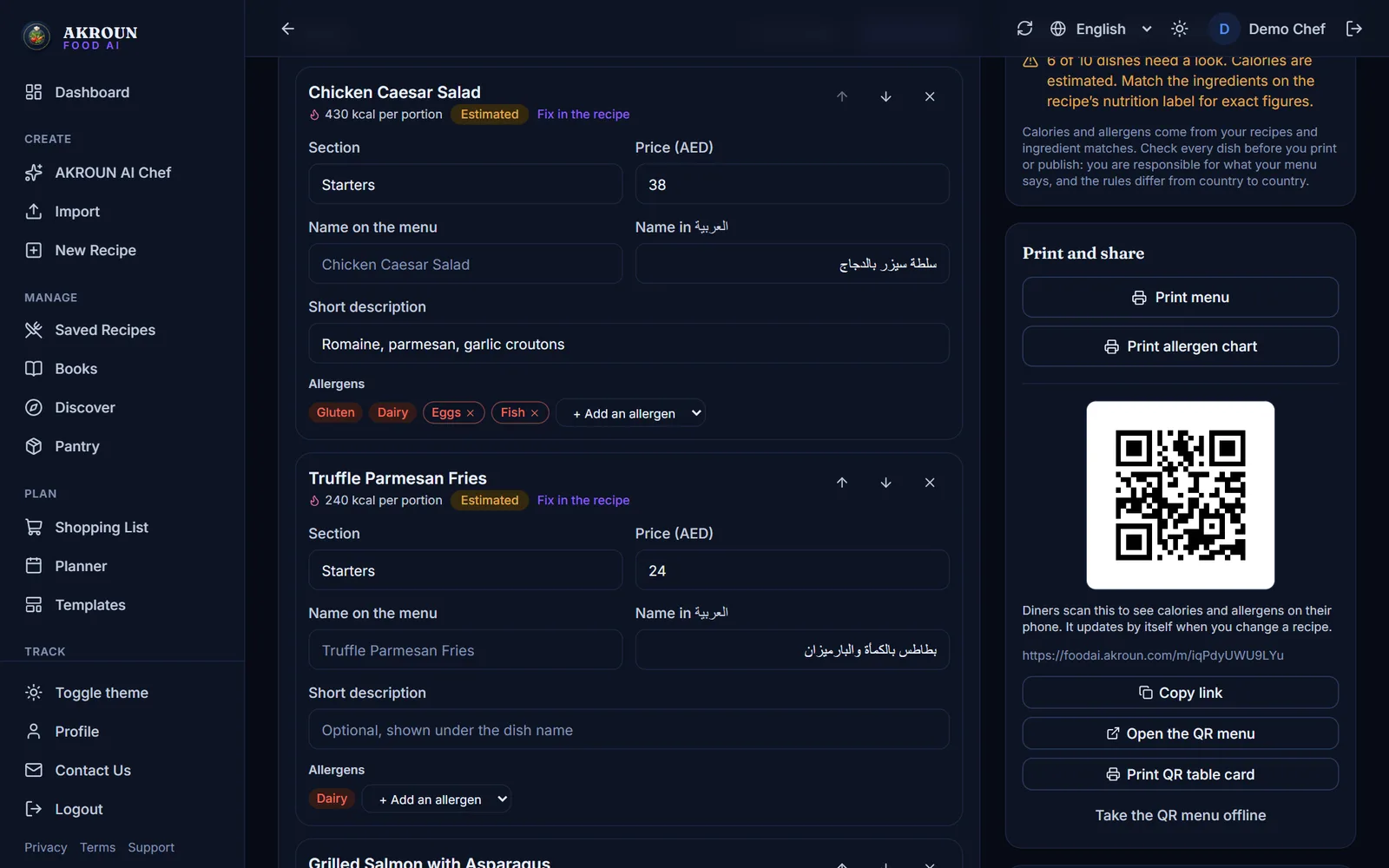
For every dish you can then set the section (Starters, Mains, Desserts…), the price, the name printed on the menu, the name in your second language and a short description. Use the arrows to change the order and press Save dishes when you are done.
3. Check the calories and allergens
Each dish shows its calories per portion and its allergens, read live from the recipe. Two marks tell you what still needs a look:
- Estimated — the calories are an estimate. Press Fix in the recipe: it opens the recipe's nutrition label, where you match the ingredients to the food database for exact figures.
- No calories yet — the recipe has no nutrition yet. It is printed without a number rather than with a wrong one.
The card Before you print or publish counts the dishes that still need a look.
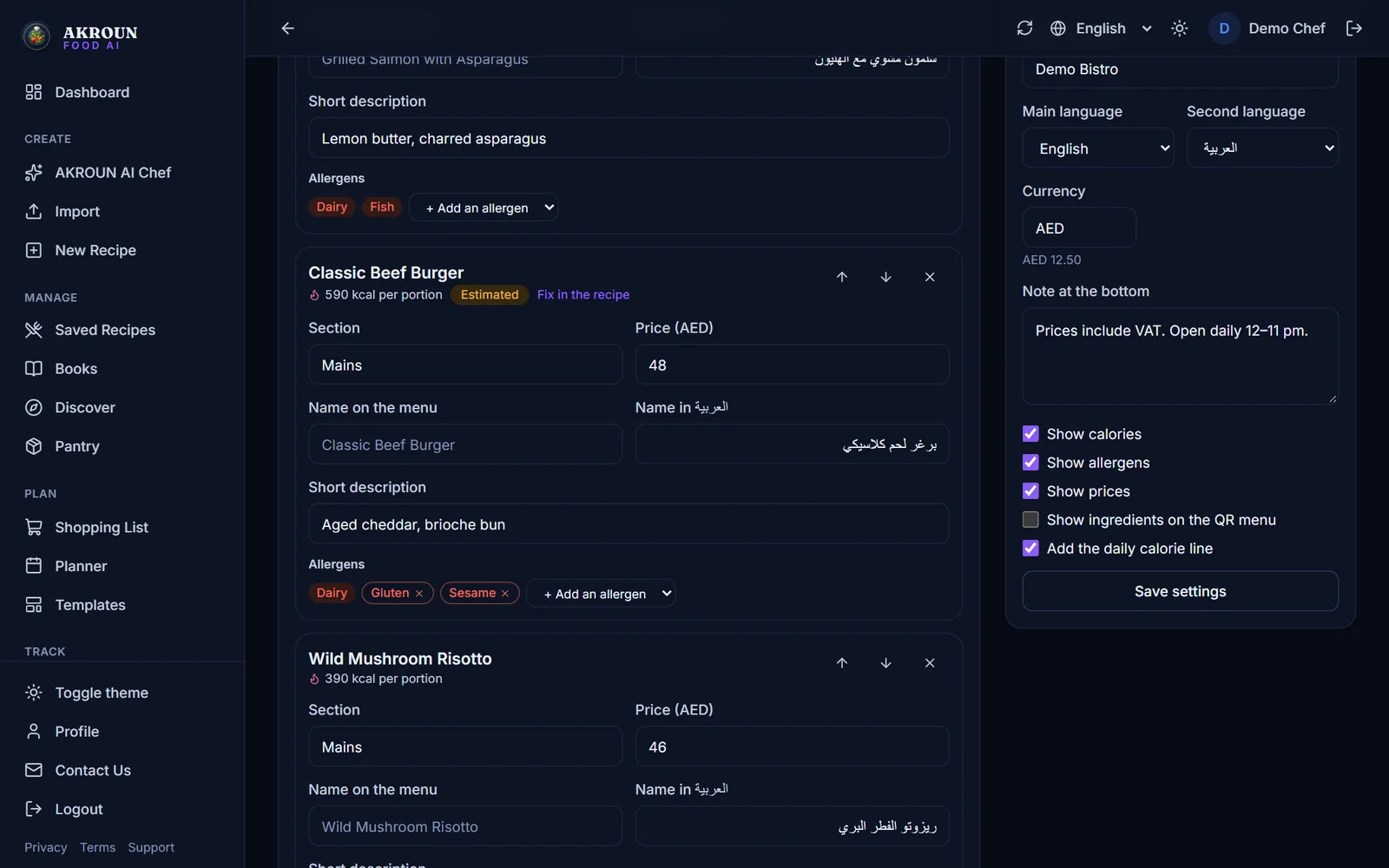
Allergens found in the recipe can never be removed from a dish — that is a safety rule. You can only add more: use Add an allergen for a "may contain" or for an ingredient the recipe does not list in detail, such as a ready-made dressing. The ones you added show a small × so you can take them off again.
4. Choose the languages and what to show
In Menu settings pick the main language, a Second language (English, Arabic or French) and the currency. Tick what the menu shows: calories, allergens, prices, the ingredients on the QR menu, and the daily calorie line ("Adults need around 2,000 kcal a day."). Press Save settings.
5. Print the menu and the allergen chart
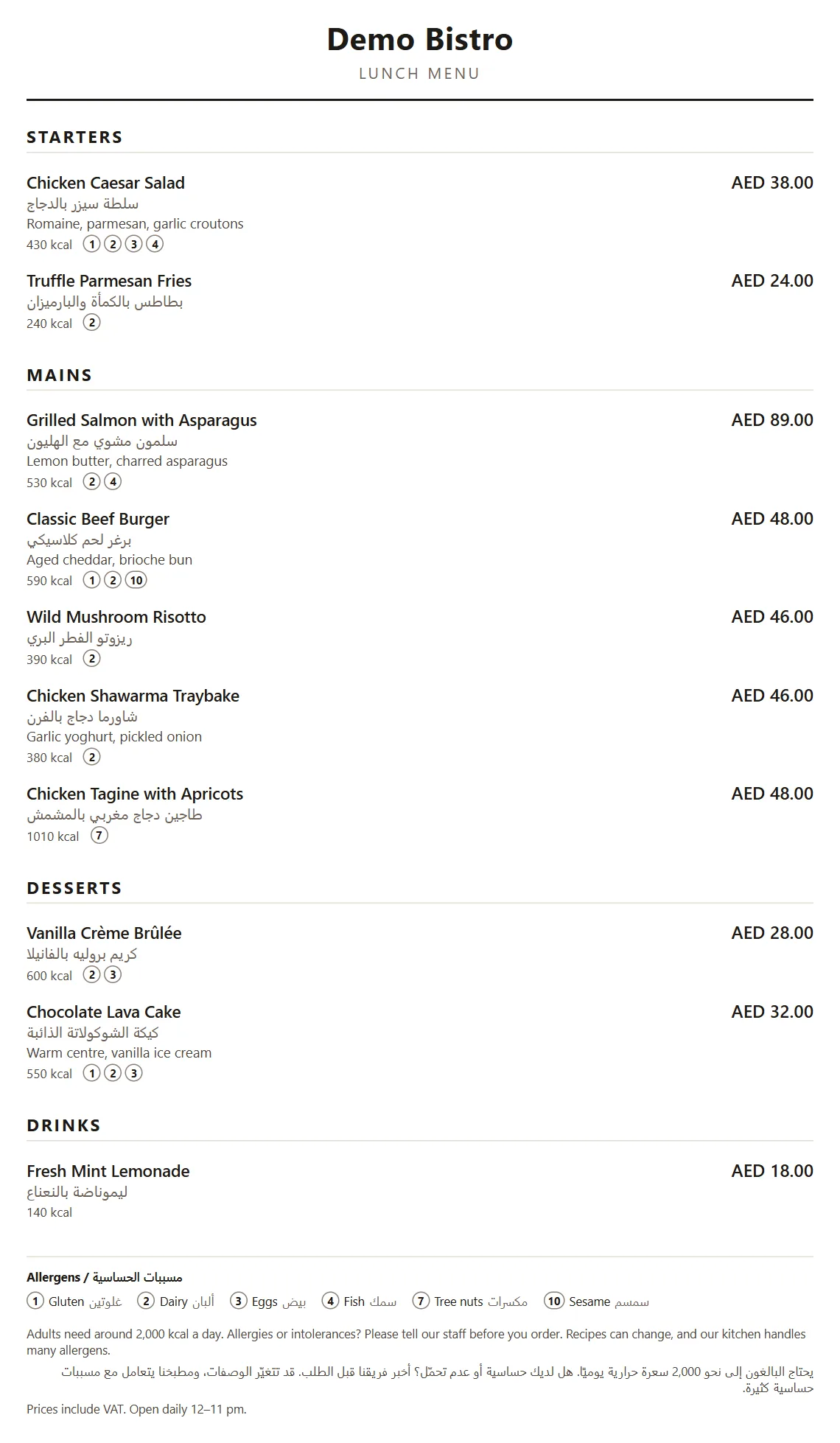
Press Print menu. A clean page opens with your sections, prices, calories and numbered allergens, the allergen key in both languages and a short note asking guests to tell your staff about allergies. Print it, or choose "Save as PDF" in the print window.
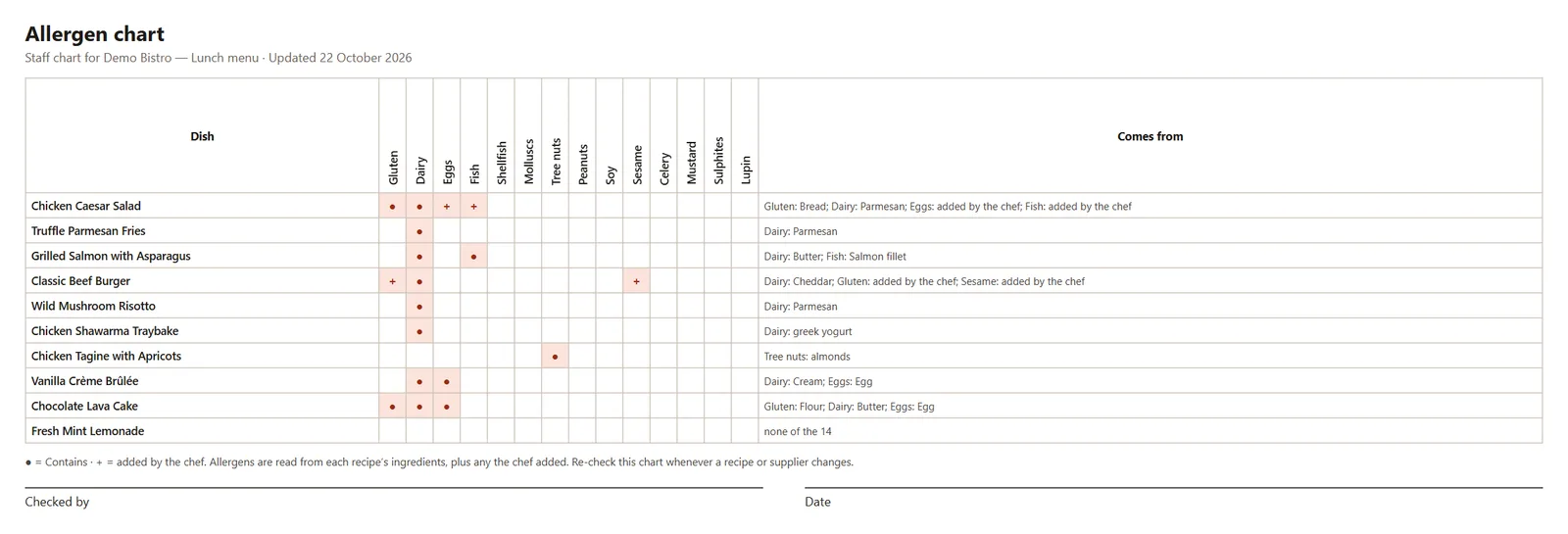
Press Print allergen chart for the kitchen. Every dish is checked against the 14 major allergens: ● means it comes from the recipe, + means the chef added it, and the last column says where each allergen comes from. Sign and date it, and print a new one whenever a recipe or a supplier changes.
6. Publish the QR menu
Press Publish QR menu. A QR code and its link appear. Copy link to share it, Open the QR menu to see it as a guest does, and Print QR table card to print cards for the tables (two per page).
The QR menu updates by itself: change a recipe and the calories and allergens change on the guests' phones too. Take the QR menu offline if you need to pause it — printed codes then show "not available", and when you publish again the same codes work again, so you never have to reprint them.
7. What your guests see
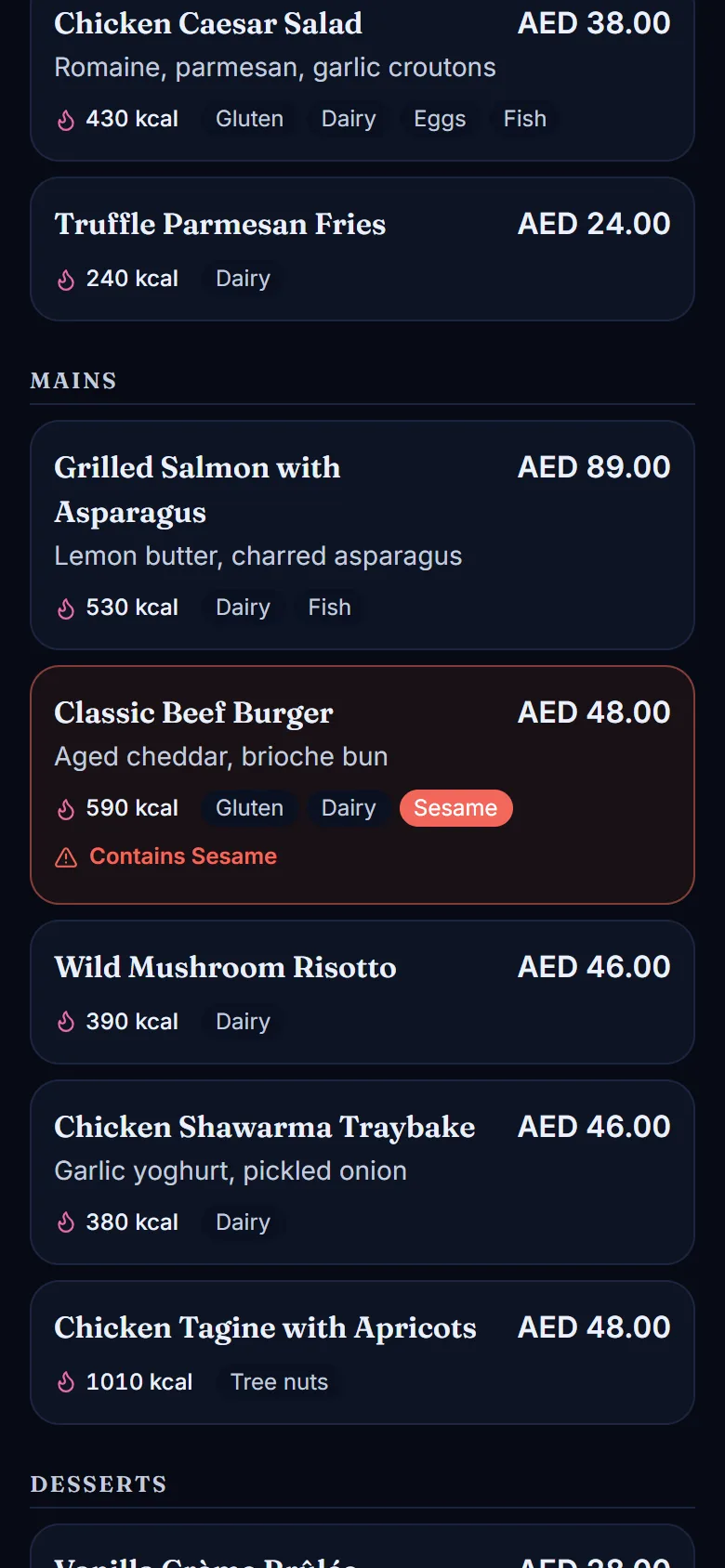
Guests scan the code and see the menu on their phone, in either of your two languages. Under I avoid they tap an allergen, and every dish that contains it is marked in red. Hide those dishes leaves only what they can eat.
How the calories are rounded
Calories are shown per portion and rounded the way menus usually show them: under 5 kcal shows 0, up to 50 kcal to the nearest 5, and above 50 kcal to the nearest 10. A dish whose calories are unknown shows no number at all — never a 0.
Keep it right
- Check every dish before you print or publish. The app reads your recipes, but you know what really goes on the plate.
- Add "may contain" allergens yourself: shared fryers, shared boards, ready-made sauces.
- Print a new allergen chart whenever a recipe or a supplier changes, and keep the signed copy.
- Rules on showing calories and allergens differ from country to country. The app helps you show the information; check it against your local rules before you print or publish.

About the author
Ali Akroun, Executive Chef & Founder
Executive Chef and founder of AKROUN FOOD AI with 18+ years in professional kitchens, hospitality consulting and culinary training.
Read the founder story →Put this into practice in minutes
Recipes, costing, labels, inventory and nutrition — generated and organised for you in AKROUN FOOD AI.
Related articles

How to Run an Internal Food Safety Audit (International Standard)
Walk your kitchen with a 71-point checklist, take temperature readings, get a grade from A+ to E and close every corrective action — step by step, with screenshots.

Shelf-Life Labels Every Professional Kitchen Should Print
A prep label is the cheapest food-safety tool you own. Here is what belongs on it, how to set shelf life by storage type, and the mistakes inspectors notice first.

How to Give Your Kitchen Staff Their Own Accounts and Roles
Invite up to 6 staff, give each a role — manager, chef/cook or front of house — and see who logged what. Cooks never see prices. Step by step.