
How to Give Your Kitchen Staff Their Own Accounts and Roles
Invite up to 6 staff, give each a role — manager, chef/cook or front of house — and see who logged what. Cooks never see prices. Step by step.

A kitchen is a team. The manager checks the costs, the cooks follow the recipes and log the fridge temperatures, the front of house answers guests' allergy questions. When everyone shares one login, you cannot tell who logged what, and everyone sees everything — including your prices and margins.
Staff accounts in AKROUN FOOD AI give each person their own sign-in to your kitchen. They work on your recipes, food-safety logs, waste and menus, and each one sees only what their role allows.
Staff accounts are part of the Chef Pro plan, with 6 staff included (you, the owner, are not counted). You find them in the menu under Track → Team.
The three roles
| Role | What they can open | Prices and costs |
|---|---|---|
| Manager | Recipes (and editing them), food safety and audits, stock and supplier invoices, menus, waste, menu costs, daily P&L, menu engineering | Yes |
| Chef / Cook | Recipes to read, cooking mode, nutrition and shelf-life labels, temperature, cooling, delivery and cleaning checks, waste | Never |
| Front of house | Menus with calories and allergens, the QR menu, recipes to read, food-safety checks, waste | Never |
Only you, the owner, can invite people, change roles or remove someone. Prices and costs are removed before anything is sent to a cook or front of house: they are not just hidden on the screen.
Step by step
1. Invite a staff member
Open Team. Under Invite a staff member, enter Their email and choose a Role. The text under the role says exactly what that person will be able to open. Press Send invitation.
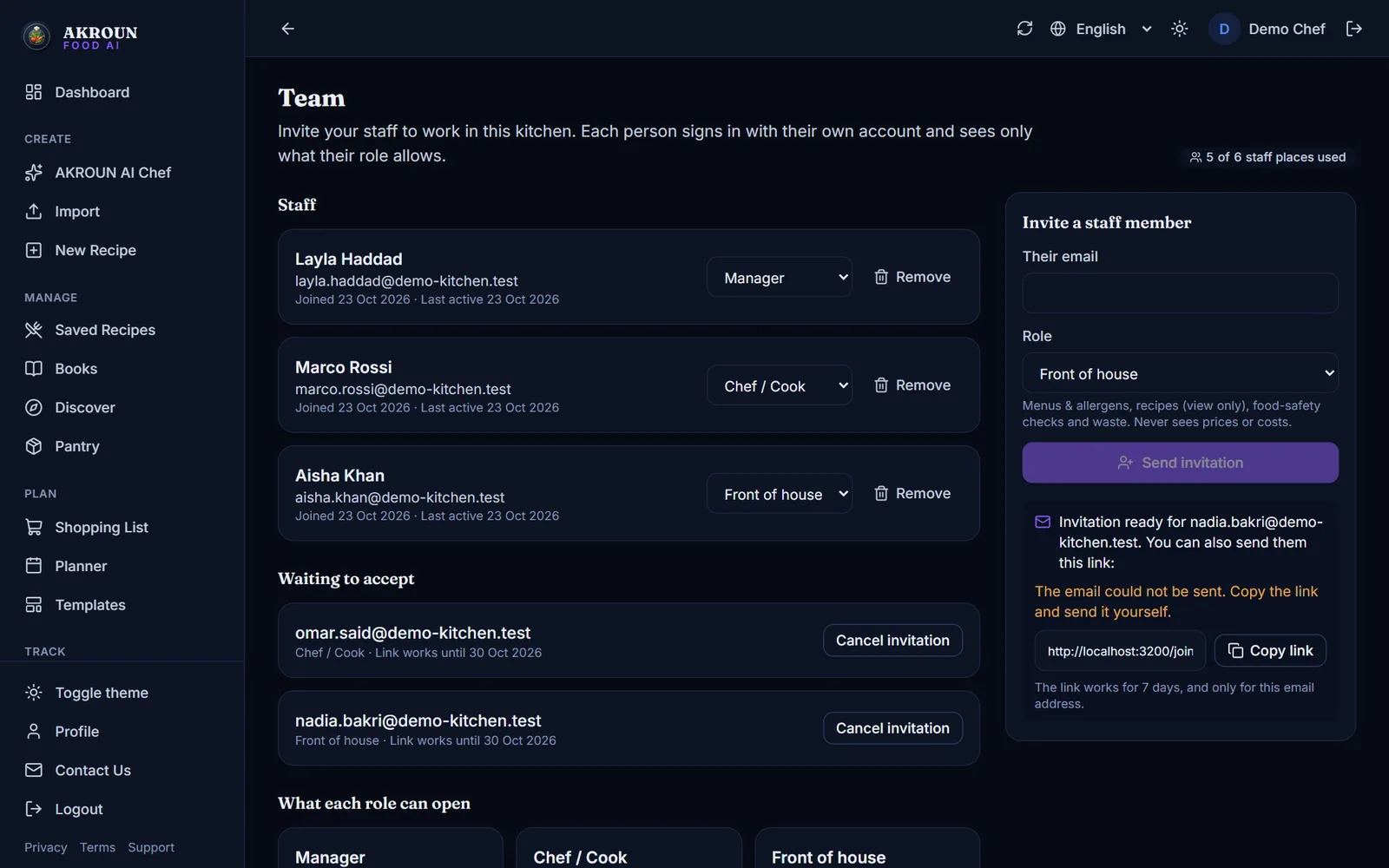
The invitation is emailed to them. You also get the link, so you can send it yourself on WhatsApp or by text: press Copy link. The link works for 7 days, and only for the email address you invited. Until they accept, the invitation is listed under Waiting to accept, where Cancel invitation stops the link at once.
2. Your staff member accepts
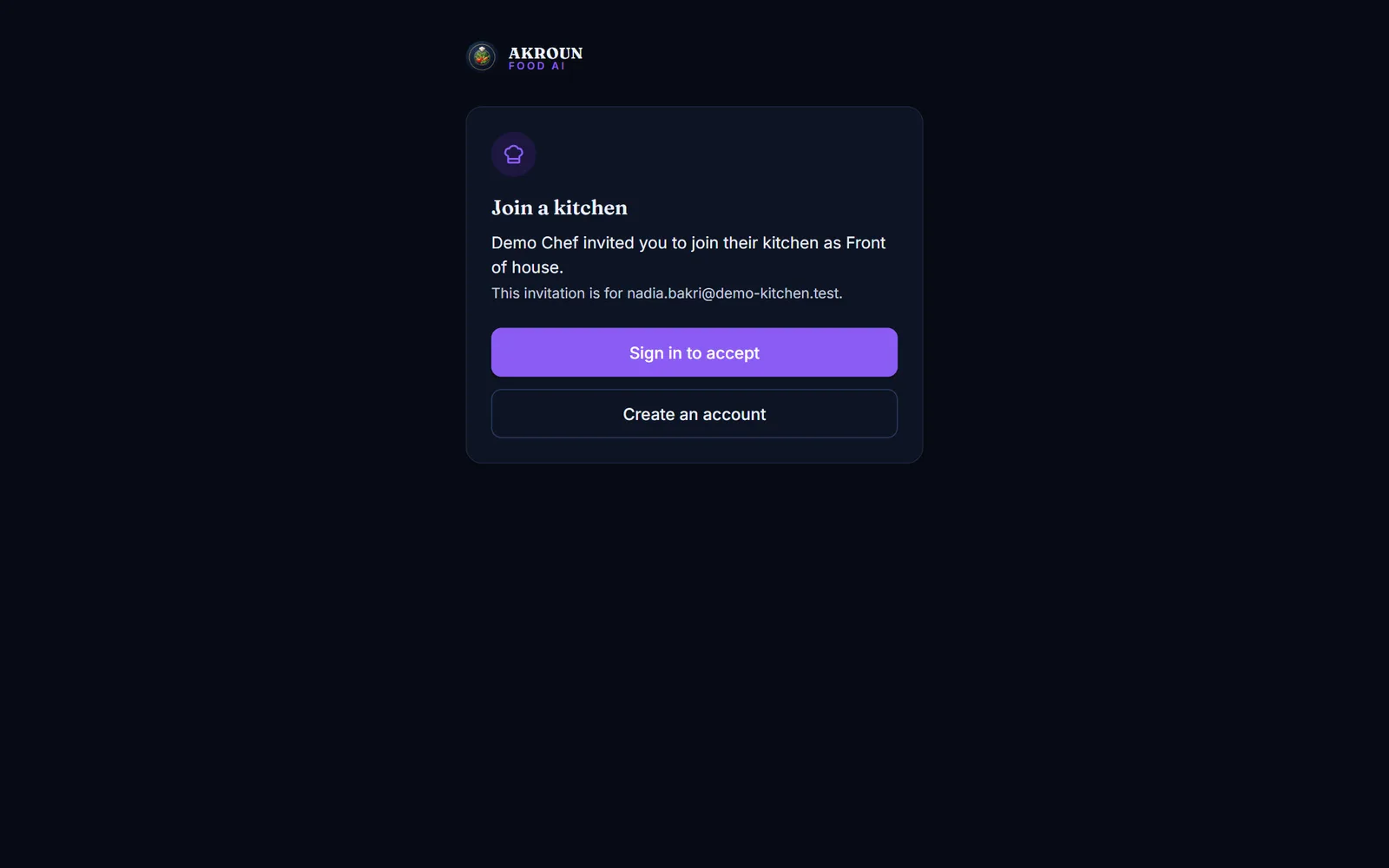
They open the link and see who invited them and as what. If they already have an account, they press Sign in to accept; if not, Create an account — with the same email address you invited. Then they press Join the kitchen.
3. What your staff see
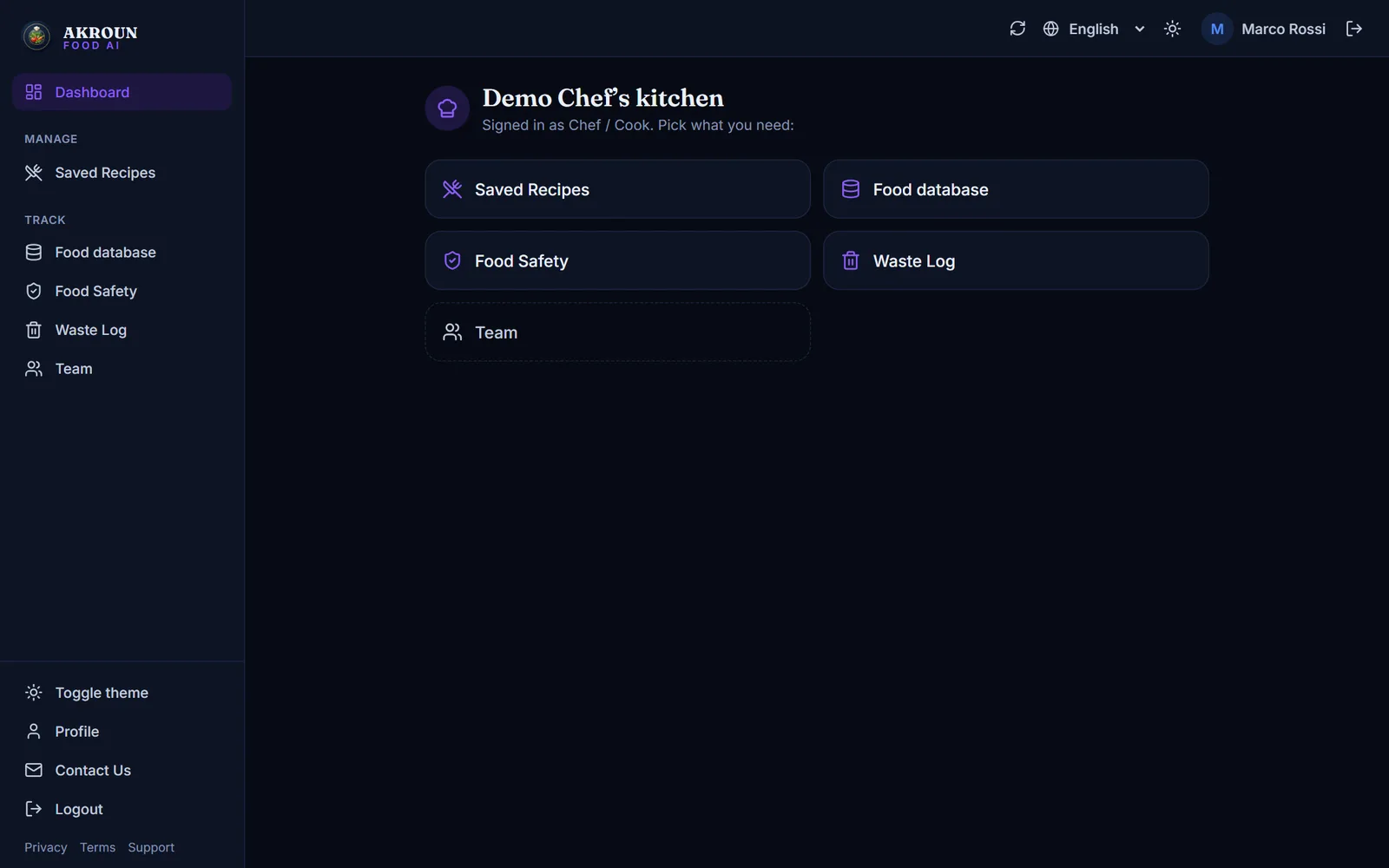
A staff member does not see your whole app. Their home page is your kitchen, with only the tools their role allows. A cook, for example, sees the recipes, the food database, food safety and the waste log.
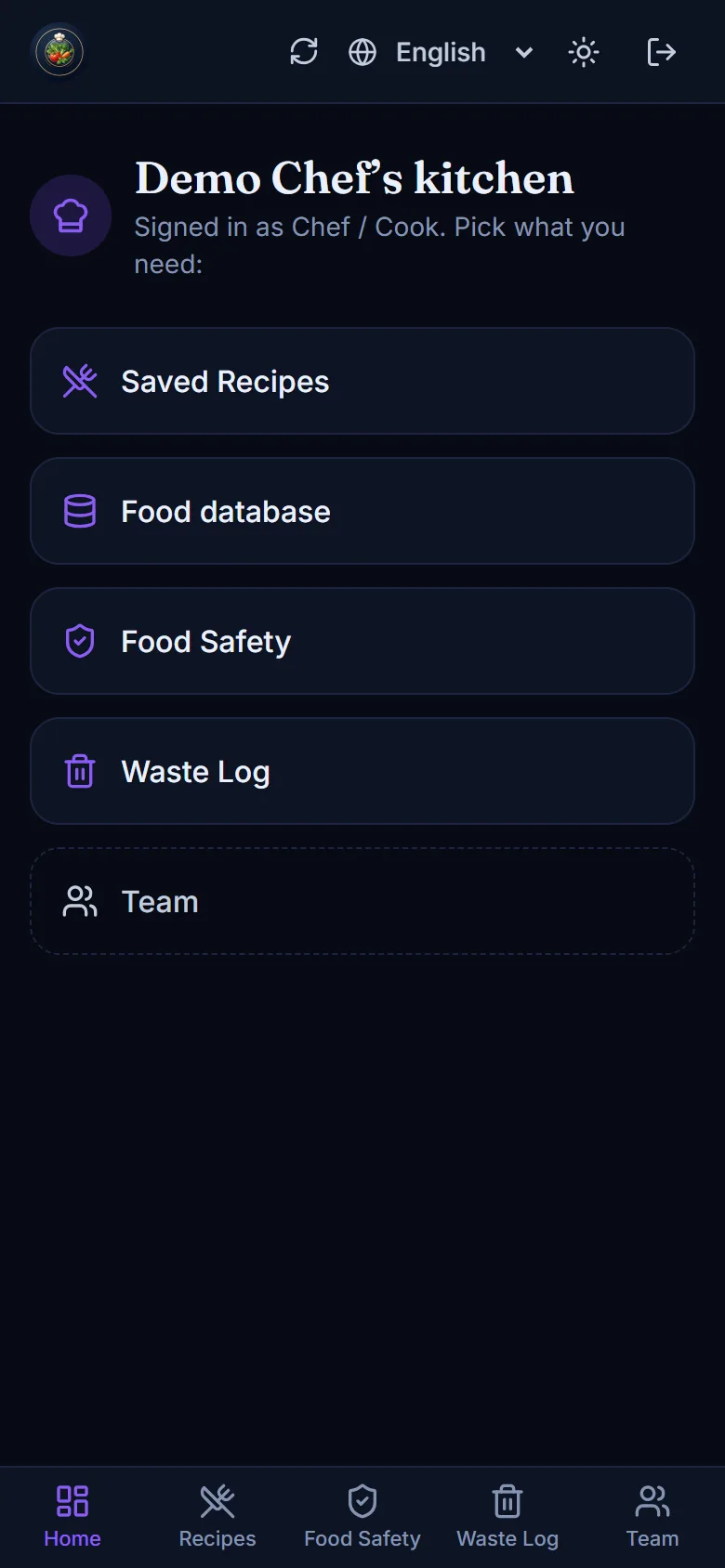
It works the same on a phone, so the cook can log a fridge temperature or a waste entry right there in the kitchen.
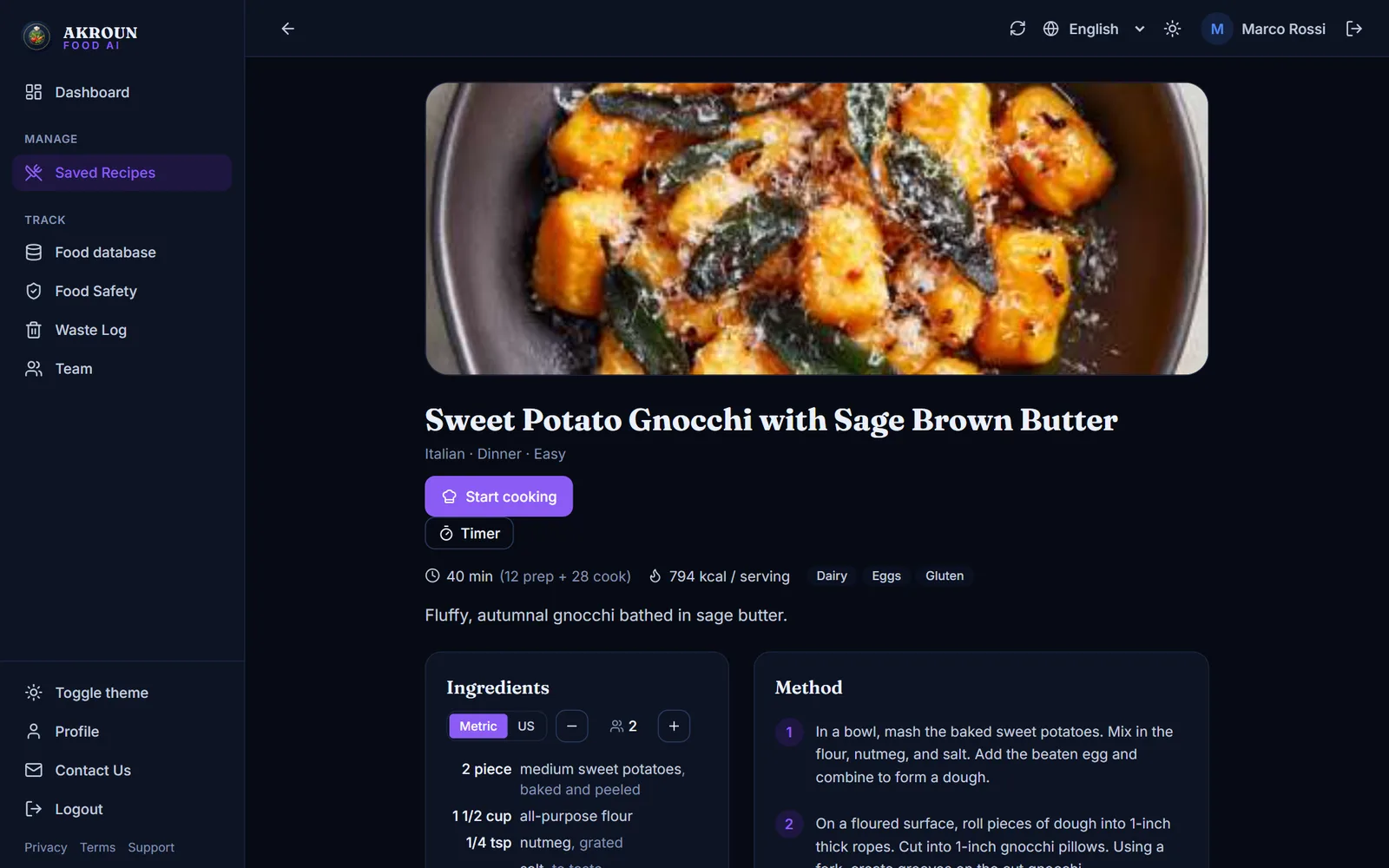
A cook opens a recipe to cook from it: the ingredients, the method, the allergens, Start cooking and the timer. There is no edit button, no delete button and no price or plate cost.
4. See who logged what
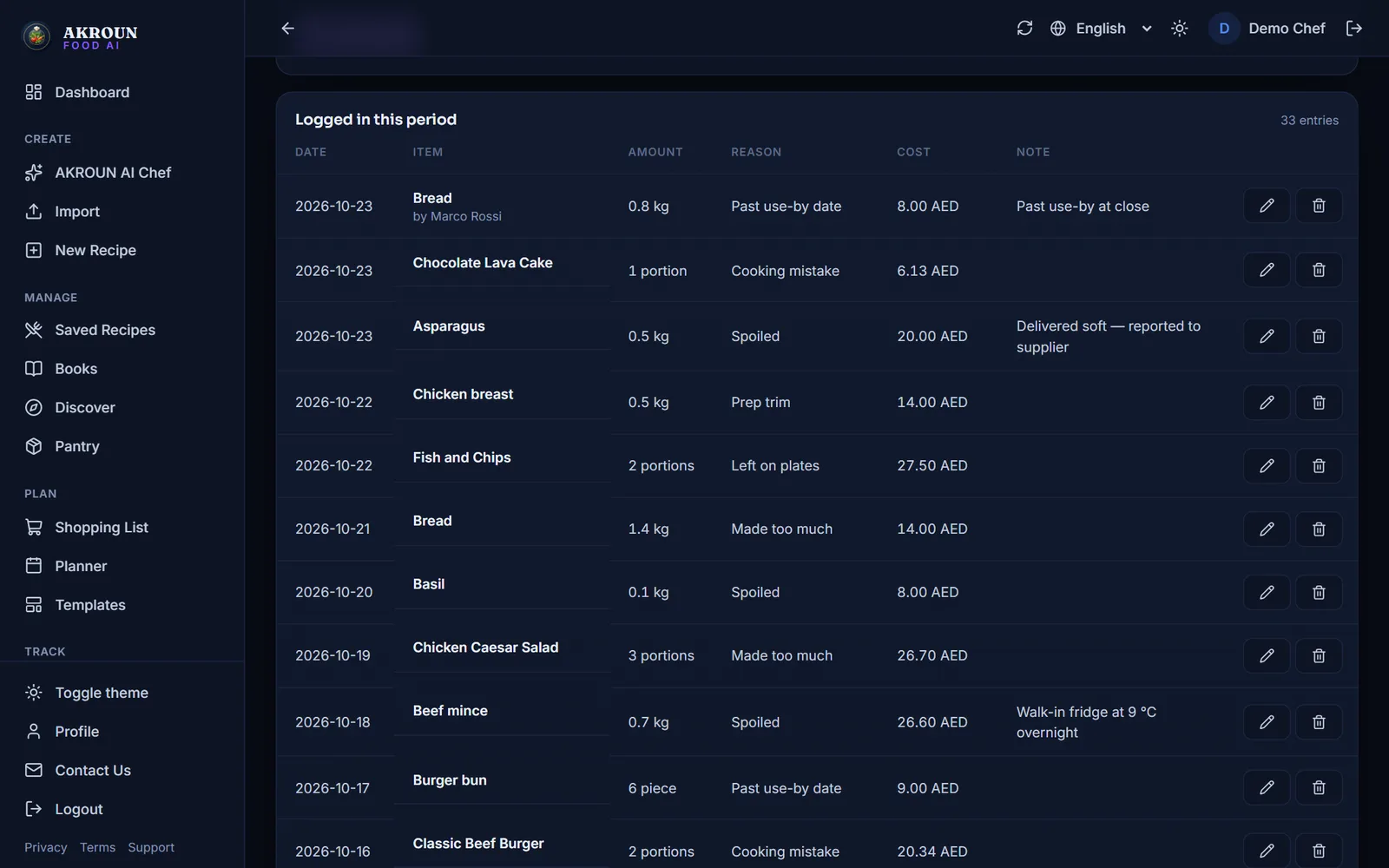
Every temperature check, cooling log, delivery check, cleaning task and waste entry records the person who logged it. In the waste log you see "by Marco Rossi" under the item, with the cost — the cook who logged it does not see that cost.
5. Manage your team
Under Staff you see each person with their email, when they joined and when they were last active. Change someone's role in the list, or press Remove — it applies on their very next tap. Their own account stays; they simply no longer reach your kitchen.
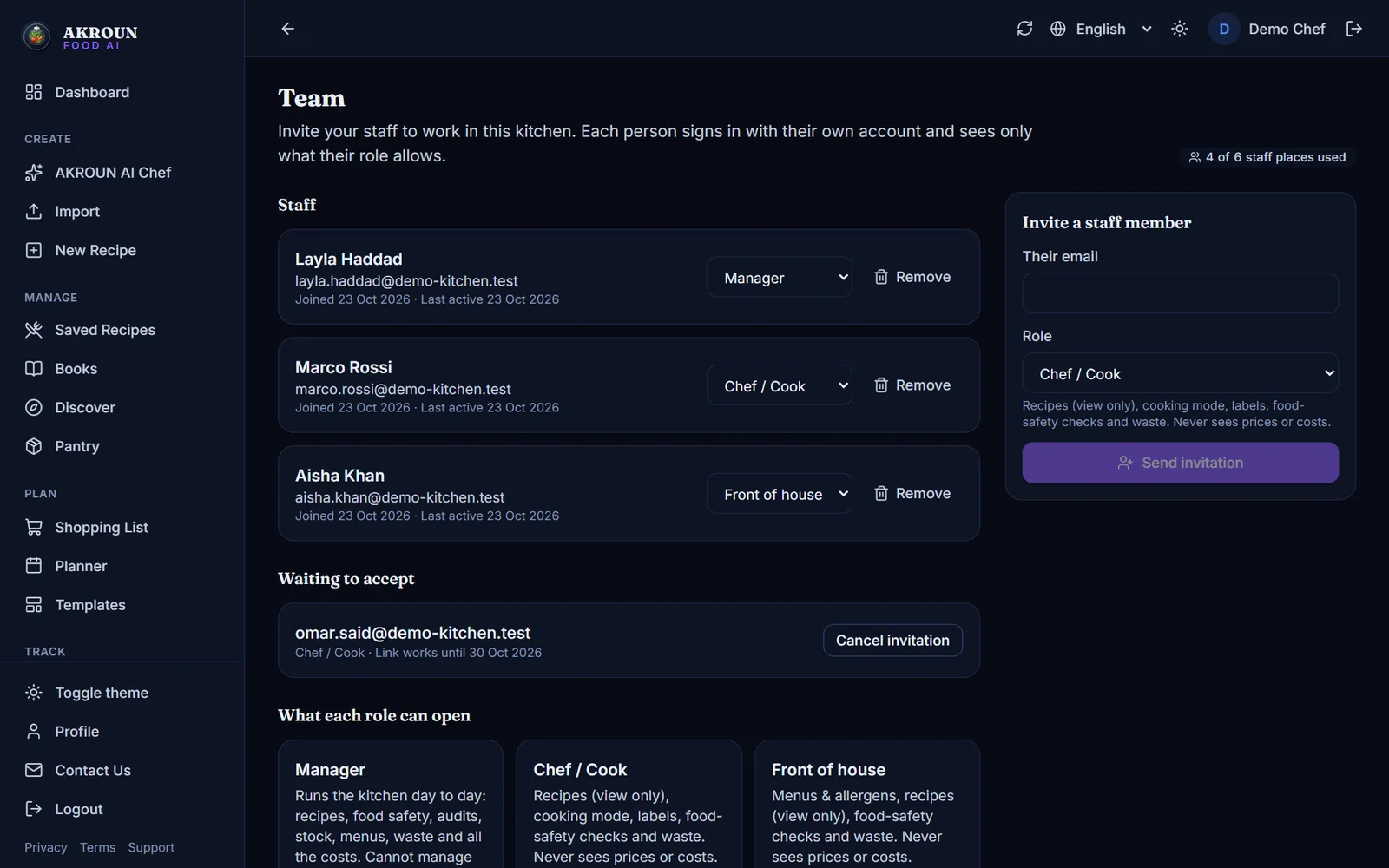
What each role can open sums up the three roles at the bottom of the page, so you can check before you choose.
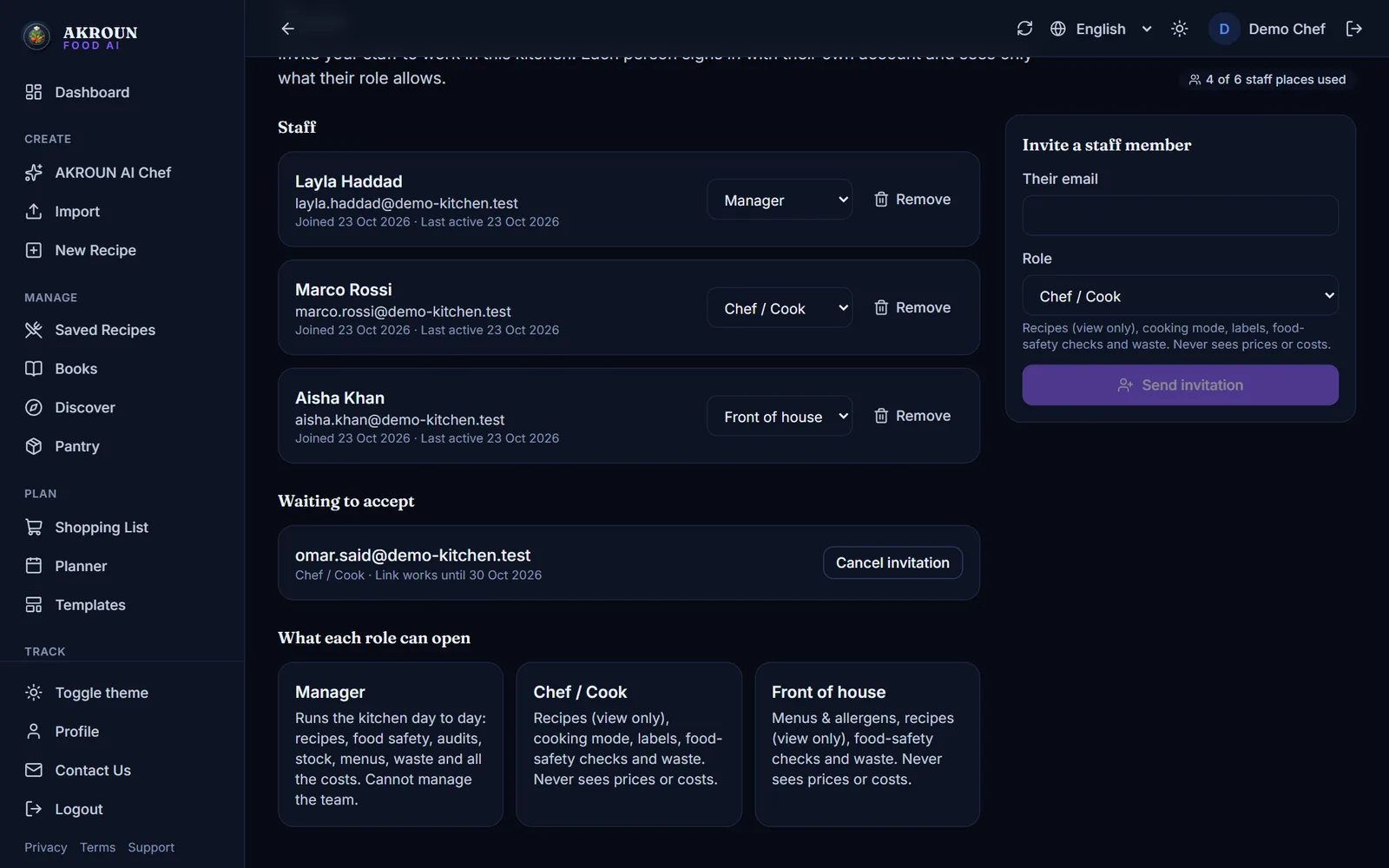
When all 6 places are used — staff plus invitations waiting — remove someone or cancel an invitation to invite another person. A staff member can also leave your kitchen from their own Team page with Leave this kitchen.
Good habits
- Give each person their own account. Shared logins hide who did what.
- Choose the smallest role that lets someone do their job: most cooks need Chef / Cook, not Manager.
- Remove people the day they leave. It takes effect immediately.
- Ask your team to log food-safety checks and waste as they happen: their names on each record make your logs stronger for an inspection.

About the author
Ali Akroun, Executive Chef & Founder
Executive Chef and founder of AKROUN FOOD AI with 18+ years in professional kitchens, hospitality consulting and culinary training.
Read the founder story →Put this into practice in minutes
Recipes, costing, labels, inventory and nutrition — generated and organised for you in AKROUN FOOD AI.
Related articles

How to Track Food Waste in Your Kitchen and What It Costs
Log what is thrown away and why in a few seconds, see what it costs by day, by reason and by item, and track buffet leftovers — step by step.

How to Use the Menu Engineering Matrix: Stars, Plowhorses, Puzzles and Dogs
Find out which dishes make you money and which only keep the kitchen busy — from your real sales and food costs — and what to do with each one.

How to Scan Supplier Invoices and Update Your Food Costs Automatically
Photograph, upload or import a supplier invoice. You check every line, then prices, received stock and recipe costs update in one click — and one click undoes it.