
How to Scan Supplier Invoices and Update Your Food Costs Automatically
Photograph, upload or import a supplier invoice. You check every line, then prices, received stock and recipe costs update in one click — and one click undoes it.

Every price change from a supplier quietly moves your food cost. When the prices in your costing are a month old, your plate costs and margins are a month old too. Typing invoices into a spreadsheet takes time most kitchens do not have, so the numbers drift.
Supplier invoice scanning in AKROUN FOOD AI closes that gap. You give it the invoice, you check what it read, and your stock prices, received quantities and every recipe cost update together.
Supplier invoice scanning is part of the Chef Pro plan. You find it in Inventory → Scan invoice.
Three ways to bring an invoice in
| Way | Best for | How it is read |
|---|---|---|
| Photo | Paper invoices, receipts and delivery notes | Read by AI — up to 5 pages, any language, any currency |
| The invoice your supplier emails you | The text is taken from the file, then AI sorts the lines | |
| E-invoice file (XML) | UBL / Peppol, Factur-X, ZUGFeRD, XRechnung | Read exactly, without AI |
Step by step
1. Open "Scan invoice"
Go to Inventory and press Scan invoice. Choose Take a photo, Upload photos or PDF, or E-invoice file (XML).
2. Take a photo the app can read
- Lay the invoice flat, in good light, and take the photo straight on.
- One photo per page, up to 5 pages per invoice (about 4 MB in total — large photos are made smaller before they are sent).
- A PDF that is only a scanned picture has no text inside. Photograph its pages instead.
3. Press "Read invoice"
Reading usually takes 10 to 30 seconds. Nothing changes in your inventory yet.
4. Check every line
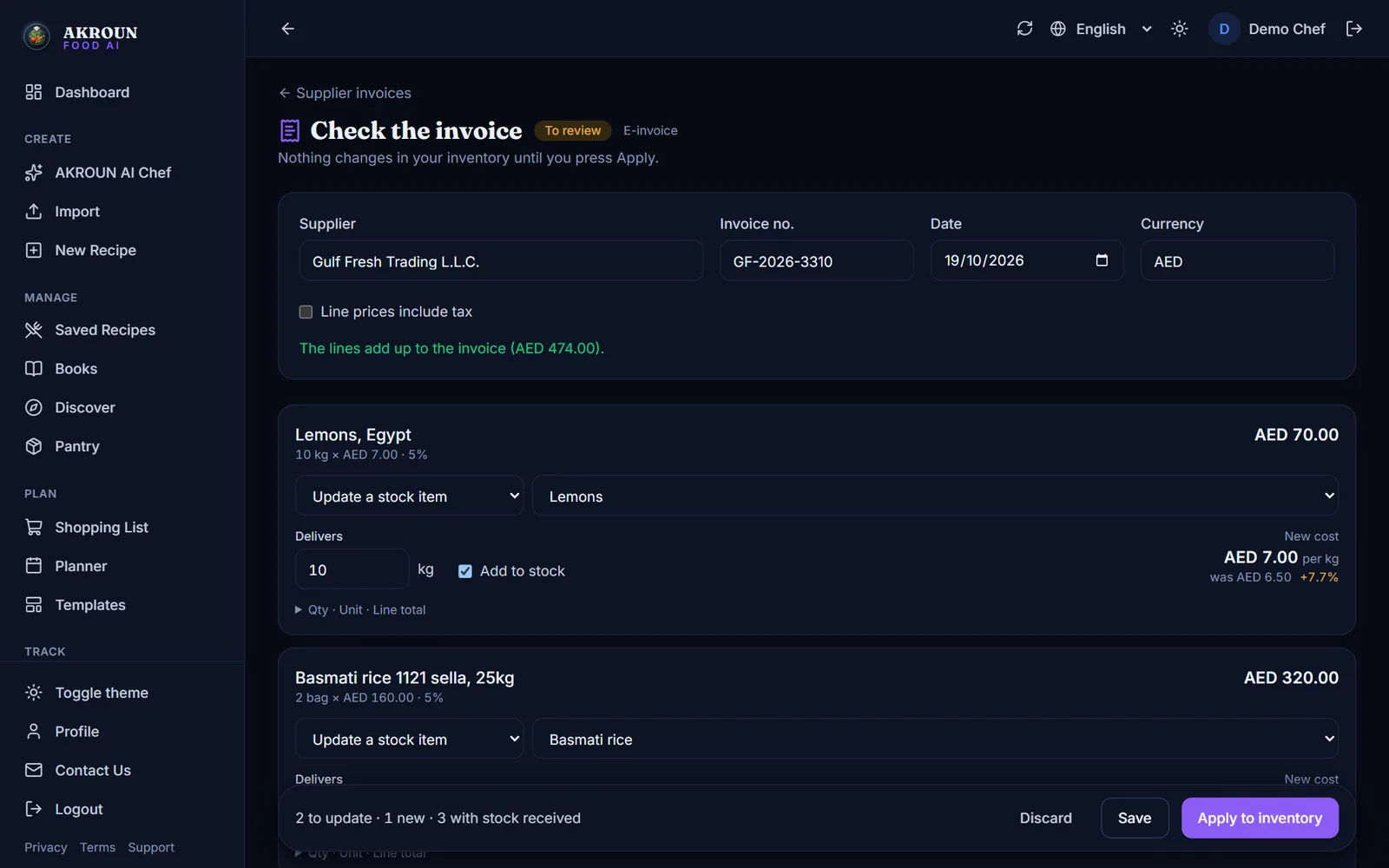
The review screen shows the supplier, invoice number, date and currency, then one card per line. For each line you choose what happens:
- Update a stock item — the app suggests the closest item from your inventory, whatever language the invoice is in. It understands packs too: "6 × 2.5 kg", "12 × 1 L", "36/1 LB" or "15 DOZ" become the quantity in your own stock unit.
- Add as a new item — for a product you do not stock yet.
- Skip this line — fees, deposits, discounts and anything that is not stock.
Each line shows the new cost next to the old one. You get a warning when:
- the price went up or down sharply;
- the price is so different that the unit is probably wrong (a case priced as if it were a kilo);
- quantity × price does not equal the line amount;
- the lines do not add up to the invoice total — usually a missed or misread line;
- the stock item is priced in another currency. Amounts are never converted behind your back — you decide.
If the line prices include tax, tick Line prices include tax so the tax is not counted in your food cost; the app tells you when the totals point that way. If an invoice with the same number from the same supplier was already applied, you are warned before you apply it twice.
5. Press "Apply to inventory"
In one step:
- the cost per unit of every matched item is updated;
- the delivered quantity is added to stock (you can switch this off per line);
- recipe costs, plate costs and the Menu costs report use the new prices straight away.
6. Made a mistake? Undo it
Open the invoice and press Undo this invoice. Prices go back to what they were (wherever nobody changed them since) and the received stock is taken out again — never below zero.
It learns your suppliers
When you match a supplier's product to one of your stock items, the app remembers it. On the next invoice from that supplier the line is matched for you and marked Learned from an earlier invoice. Undoing an invoice also forgets what it taught.
AI use
Reading a photo or a PDF uses one of your plan's daily AI requests per invoice. E-invoice files are imported without AI, so they never count.
Why it matters for your margins
Say a supplier raises an ingredient from 6.50 to 7.00 per kg (+7.7%). A dish that uses 200 g of it now costs 0.10 more per plate. Across 3,000 plates a month, that is 300 a month leaving your margin without anyone noticing — unless the new price reaches your costing the day the invoice arrives.
Want to see the effect on a single dish first? Try the free food cost calculator.
Tips from the kitchen
- Scan on the day of delivery, so stock and prices match what is on the shelf.
- Keep one stock unit per item (kg, L or piece). The app converts packs into that unit for you.
- Always read the review screen. A smudged or folded invoice can be misread — that is exactly why nothing changes until you press Apply.
Free chef tools mentioned here

About the author
Ali Akroun, Executive Chef & Founder
Executive Chef and founder of AKROUN FOOD AI with 18+ years in professional kitchens, hospitality consulting and culinary training.
Read the founder story →Put this into practice in minutes
Recipes, costing, labels, inventory and nutrition — generated and organised for you in AKROUN FOOD AI.
Related articles

How to Give Your Kitchen Staff Their Own Accounts and Roles
Invite up to 6 staff, give each a role — manager, chef/cook or front of house — and see who logged what. Cooks never see prices. Step by step.

How to Track Food Waste in Your Kitchen and What It Costs
Log what is thrown away and why in a few seconds, see what it costs by day, by reason and by item, and track buffet leftovers — step by step.

How to Use the Menu Engineering Matrix: Stars, Plowhorses, Puzzles and Dogs
Find out which dishes make you money and which only keep the kitchen busy — from your real sales and food costs — and what to do with each one.